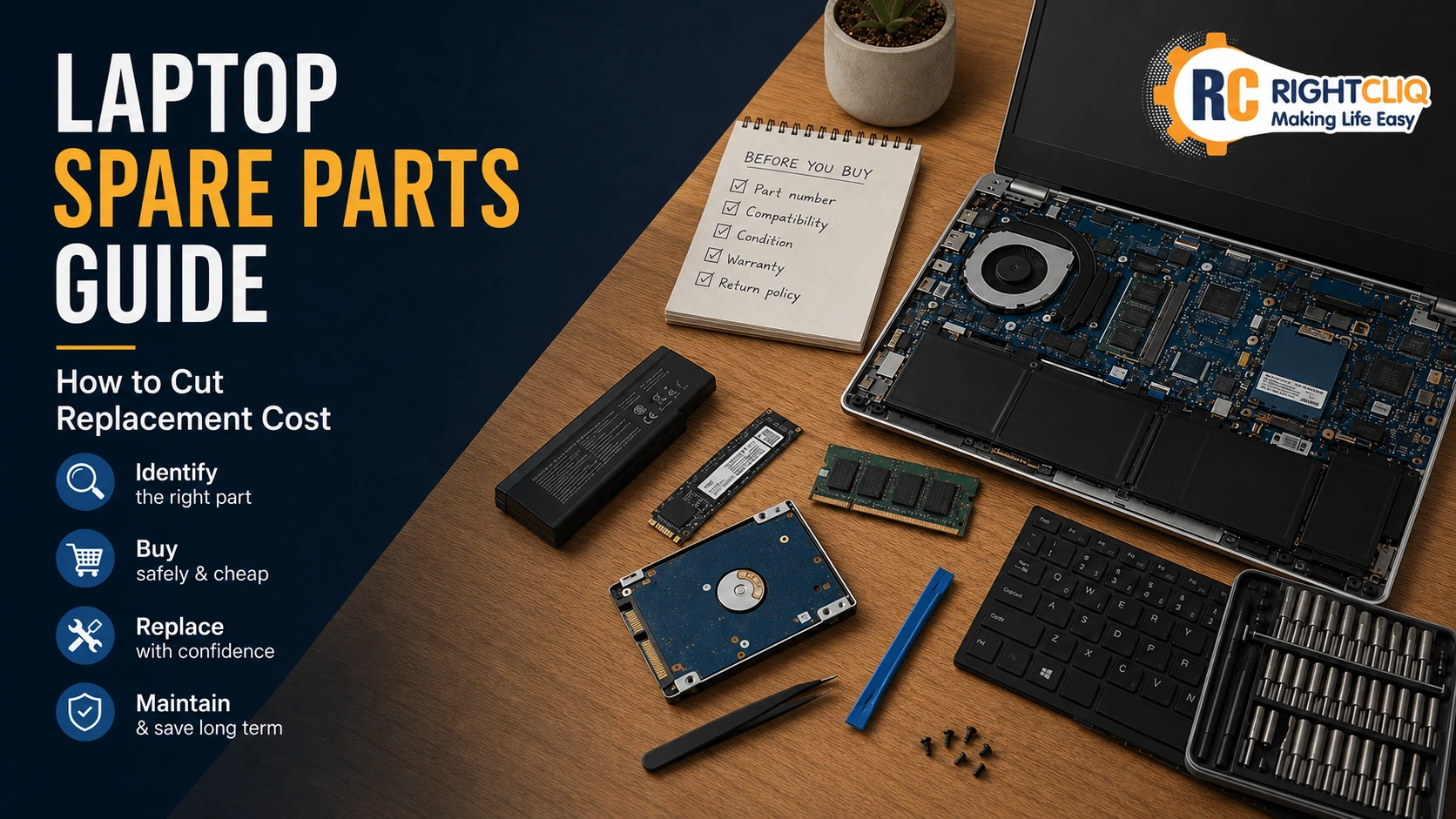
How to Recover Data from a Crashed Laptop: Expert Methods That Work

Common Causes of Laptop Crashes and How Data Recovery Experts Retrieve Lost Files
When the laptop crashes it can signify anything ranging from a Windows blue screen to a complete dead laptop that doesn't even light up. That is all the problem. There are various ways to recover, as they all depend on what was the failure. Chances are the quickest route to losing the thing you are trying to save is to treat each crash as the same and start clicking repair buttons, reinstalling things or rebooting it 40 times out of panic. In many instances, this can make crashed laptop data recovery more complicated. So let's take a bit of a technician's approach and a bit of a data recovery specialist's approach. Just as with a trusted laptop repair service, the mission is to always determine what sort of failure is necessary, safeguarding the drive, and never taking the most intrusive route unless needed.
Understanding Why Your Laptop Crashed at a glance
Prior to trying recovery tools for your laptop it is essential to determine the cause of the crash. System failures can be split into two categories: hardware failure and software corruption (and even includes file system failure).
Knowing what kind you have will be the key to deciding how to recover and not to cause more damage. This is particularly true when doing hard drive recovery for crashed laptop data recovery under the wrong conditions, as recovery rates may be lowered drastically.
For example, the problem seems serious, but sometimes it can be as simple as a laptop screen replacement instead of a recovery. The right diagnosis in every case is always the first.
Common Hardware Failures:
Hardware failure is the range of anticipated failures of hardware or components. Sudden shutdowns due to power supply problems, improper handling, as a result of voltage fluctuations, unexpected power surges. Bad RAM causes memory errors and crashes, and bad hard-drives have clicking or grinding noises.
CPUs and GPUs overheat and have to be shut down to prevent damage. In many situations, the term laptop overheating is a warning in many of the instances and for deep hardware issues. If the motherboard is faulty, it will display no power on, random or frequent start/stop or failed to recognize hardware.
According to the study from Backblaze, the failure rate rose from 1,01% to 1,37% for drives found in 2022. Due to the damage to the heads, platters, motors, firmware, or surge damage to the crashed laptop, data recovery is required.
Software-Related Crashes:
A software crash occurs when it is filed on your computer that becomes corrupted and prevents your system from running properly, and the hardware is not damaged. This can also happen due to file system errors. Freezes and errors can also be caused by driver conflicts, bad Windows updates, malware or registry damage.
If various applications are attempting to use the same resource, a deadlock ensues putting the hard disk under stress. In such cases, crashed laptop data recovery and laptop data loss solutions can come into aid to save your files.
Signs the Data are still recoverable:
When files are removed recently, the drive can still be found by the system or the laptop still turns on when something is wrong, your data may be recoverable.
Slow, corrupted files, even formatting are not necessarily final loss.
In some cases, data may still be salvaged when the system crashes if there has not been any serious physical damage.
The Fundamental Tools and Equipment for Laptop Data Recovering
Collecting the correct equipment helps data recovery for laptops and makes certain that your files don't get hurt any additional. Whether you are encountering software corruption or hardware data recovery techniques after a hardware failure, it is important to have all the tools at your disposal – and that is where having the essentials ready gets things done quicker, saving precious time. This is especially crucial in cases of “crashed laptop data recovery,” where proper handling can enhance the likelihood of safe data recovery.
External Hard Drive Enclosures & Adapters
Crashes your laptop, valuable data recovery can be achieved by using external hard drive enclosures and SATA to USB 3.0 adapters which are used to attach your laptop with another PC. For 2.5/3.5-inch drives, UASP provides up to 5Gbps.
Bigger drives would require a 12V 2A adapter for file recovery, and SATA would work with newer laptops and IDE again with older laptops, up to 16 TB. Priced INR 843.80 to INR 2531.41, shipping included.
→ Works with Windows, macOS, Linux and Chrome OS
Data Recovery Software Options are available.
Professional Data Recovery Software is able to search drives for lost or deleted files and help build a profile of your interests. During April 2026 testing, Disk Drill managed to recover 91% of data from Windows and 96% of data from macOS.
Independent tests indicate that the EaseUS Data Recovery Wizard has a high success rate of 99.7%, and can recover 76% of the deleted files with complete names, even in cases of accidental deletion. With an 80% recovery rate from simulated corrupted drives, it was the most effective tool for the recovery process.
Requirements for Bootable USB Drive:
Windows Recovery Drive utility for data transfer and also system recovery in a bootable USB medium. Empty your USB flash drive as the process to create recovery media eradicates it and can help prevent potential logical damage. Update this Media each year, adding any new Windows update.
Hand Tools Needed for Basic Work
Laptop casing can be opened by using a precision screwdriver set. Multi-bit sets are 32 pieces and work for a variety of laptop models such as star bits, T2, T4 and Philips-heads for mobile or laptop repair.

DIY Laptop Data Recovery Methods at a glance
There are four different proven approaches to recovering data from crashed laptops, depending on the nature of their failure. Choose the solution depending on the way your system starts, if it's partial, it won't or it displays hardware damage.
If you select a proper technique at the start, crashed laptop data recovery will be safer and also there is a higher probability to enhance successful information retrieval.
1. The first method is to make a Bootable Recovery Drive
Bootable USBs are able to access files without your corrupted operating system. You can download and install Wondershare Recover on a normal computer and plug in a blank USB drive (16GB or higher) and click ‘System Crashed Computer' to create bootable disk image media. Your USB will be formatted and a bootable version will be created in two processes.
Go with your crashed Laptop's BIOS, press F2, Del, Esc or F12 and connect the Bootable USB to the laptop.
Enable the boot of the USB drive first.
After booting, select Hard Disk Copy to transfer anything with a transfer cable to an external hard disk or select Data Recovery to search for and recover files.
2. Detach the disk drive and then hook it up to an external computer
Remove the hard drive from the laptop following manufacturers' guidelines. Connect to the other computer via a SATA-to-USB adapter or Sata external enclosure. The drive shows up in the disk management and you can directly back up files. This is the best way to go about this when the damage to the drive is logical and Windows will not boot.
3. Access files using the Safe Mode
Safe Mode starts up with an absolute bare-bones system with only critical drivers, skipping out on problematic software. Enter "msconfig" in the RUN box, unlock Safe Boot on the Boot tab and restart. In Safe Mode copy important files to external media or cloud storage. But there are certain systems that crash in Safe Mode as well, and take alternate methods.
4. Professional Data Recovery Software
On the other computer on which you are working, install software such as R-Studio or DiskGenius. These programs are used to scan, recover recoverable files, rebuild lost partitions and restore files on corrupted drives. Check files before recovering for quality. Don't save data on the same drive you are trying to recover – that can cause it to be overwritten.
When to reach Data Recovery Experts
The usefulness of do-it-yourself remedies is limited in the case of physical damage. Knowledge of these limits shaves off irretrievable data losses and wasted attempts for recovery.
Physical Damage Signs
Mechanical failure is manifested as clicking, grinding or buzzing sounds that need clean room assistance. Your computer doesn't recognize the drive, error indicates corruption of the file or the hard-drive or unusual sounds mean it's time to call for professional assistance. Hard drives can be easily damaged by exposing in an unprotected system, which results in damage. The skilled removal and stabilization of the types of damage that occur as a result of physical trauma (such as falling trees or even fire) or water damage require specialist approaches.
Recoveries that failed to get results due to improper attempts
Each of these attempts to recover the n wiped out the chances of success until it was zero. CHKDSK will wipe out recovered data on failed hard drives. Dust contamination, and loss of data security occurs because of openings to the outside of cleanrooms. Damage from software affecting physically damaged drives will result in additional damage. Stop immediately if the drive suddenly disappears or if drive activity is very slow when attempting to clone.
Cost vs Value Analysis
The search for the best data recovery option becomes even more important as mechanical failures come at a cost of INR 67,504.36 to INR 151,884.81+ for cleanroom, donor parts etc.
Recovery costs will be determined by the amount of time & effort needed and NOT amount of data. Most services don't contain info about data, no fee policies.
Opting for a Professional Recovery Service
Find providers with success rates a little higher than 95 percent and check out advertising partners with no diagnostic charges for free offers. Look for Class 100 areas and qualified technicians. Ensure transparency of costing and pricing.
Conclusion:
Now, you have all the tools necessary to recover important files and info from a crashed laptop using hard drive recovery techniques. Use the easiest DIY techniques, such as safe mode or bootable drives. For most cases, these methods can identify crashed laptop data recovery in its infancy and these techniques are effective as long as no clicking does not occur or if there is no physical damage.
Most importantly, cease using the drive right away in case the DIY efforts are unsuccessful. For more complex recovery situations, there are professional recovery services and swift action increases your chances of a successful recovery.
If your laptop is failing to boot, or it is making clicking sounds, it's time to hire experts, not indulging in more guessing. Before the damage becomes incurable, book a laptop data recovery appointment now for safe and certified data recovery services.
Frequently Asked Questions:
How can I tell if my laptop's crash will require servicing hardware or software?
If that clicking or grinding noise occurs, it's time for hardware repair and if error screens or freezing happens, it's time for software repair.
What if the laptop does not power on at all what can I do in this case to recover files?
Yes, simply disconnect the hard drive and connect it to any other PC with a SATA-to-USB adapter.
Can I use CHKDSK, or other repair features on a crashed drive?
Yes, CHKDSK will destroy irretrievable information on a faltering hard drive.
When to stop Do-It-Yourself recovery and call a service provider?
If there are strange sounds coming from the drive, pull over and contact an expert in need of immediate repairs.