Understanding Apple Unified Memory: What You Need to Know

How to Choose the Right Mac Memory Configuration
If you have caught a glimpse of a shiny new Mac and wondered what on earth unified memory really means, you are not the only one. The shift to Apple silicon in modern Macs has changed the way we think about memory, and in the process made the old way of thinking about RAM feel a bit out of date. In simple terms, unified memory lets the CPU and GPU dip into the same memory pot, which may sound a bit technical, but trust us, it’s a lot easier to grasp once you get a glance at how Apple designed it, and why it can make a real difference to everyday performance.
Why Apple Unified Memory is a Big Deal
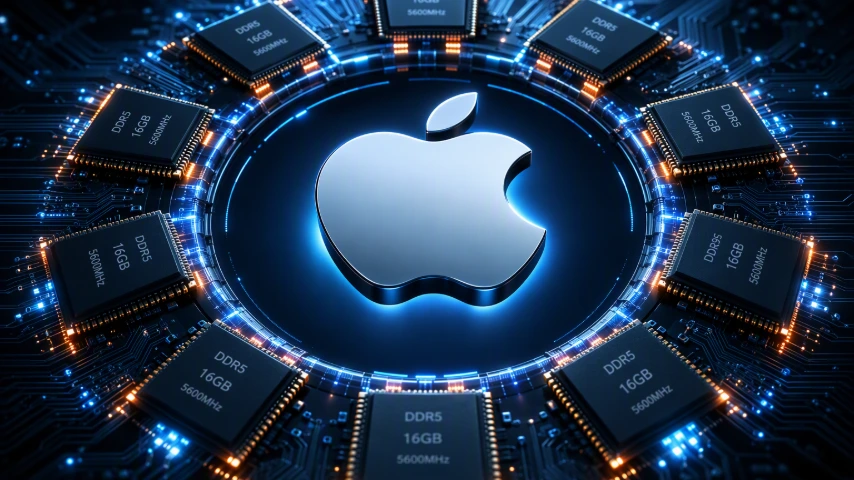
Apple's unified memory is the memory architecture used in Apple silicon Macs. Rather than giving the CPU its own area to play in and the GPU its own separate space, Apple chose to use one big shared memory pool that both can access.
That unified memory architecture changes the way memory management works in a fairly simple but really important way. What with data not needing to be shuttled back and forth between different areas all the time, the system can get on with things a lot more efficiently.
If you want the short answer, unified memory is basically Apple's shared memory setup, while traditional systems usually split memory duties in two.
How Unified Memory is Different from Old School RAM?
In standard computers with traditional RAM, the CPU and GPU tend to use separate memory banks. In the discussion of unified memory vs traditional RAM, data has to go back and forth, which slows things down a bit. But then Apple's Unified Memory comes along and changes the picture. It creates one shared pool right near the chip, lets both processing units get on with things quickly, and that results in a nice boost to memory bandwidth and a doing away with separate memory space.
If your Mac ever starts to feel a bit sluggish, getting in touch with a decent laptop repair service is the best way to get it sorted out. And when it comes down to it, shared memory enhances power efficiency, making it one of the things that makes modern Apple computers feel so fast.
Why Apple Decided to Use Unified Memory on Silicon Macs
Apple built its Apple silicon using a system on a chip design, which meant that the CPU and GPU are able to share resources directly. By switching to Apple's Unified Memory, it was able to speed up data access and make memory management a lot simpler, showcasing Apple silicon memory innovation. Because the components are right next to each other, devices like the MacBook Pro can get away with using less battery power - and the memory controller makes sure everything runs smoothly. It all adds up to a clever setup that makes Macs feel nice and responsive.
What's more, the long term effects of this can be lower rates of laptop repairs. Users are left with a smooth running computer and everyday tasks, with nothing working differently now, thanks to proper management of login items.
Did Apple Invent Unified Memory? How Apple Changed the Laptop Industry
Now, Apple didn't actually invent unified memory. People have been using shared access for decades in gaming consoles and phones. But what Apple did do is to make Unified Memory Architecture (UMA) famous by plonking it into computers using the 2020 M1 chip - and making it easy to understand with some nice simple diagrams.
This Apple Silicon Memory Breakthrough proved how Unified Memory can make a big difference to efficiency, and it helped to push this powerful idea of the apple m chip laptop revolution into the mainstream of laptop discussions, worldwide.
The Power of Unified Memory on a Mac
Unified memory can make a big difference to Mac performance by cutting down on time wasted juggling data between different areas of the system. Because the CPU and GPU, including discrete GPUs, can access the same pool of memory, the whole system responds that much faster during everyday tasks - which is why you often see a noticeable performance boost on a MacBook Pro or other Apple silicon Mac.
And it's not just that: this design also supports low latency and strong memory bandwidth, making it feel like a more direct route to what you need, resulting in less time for data retrieval. If you want to see this play out in real life, just take a look at how your Mac handles daily use, then ramp up to some heavier workloads and see the difference for yourself.
What Unified Memory Really Means for Your Everyday Experience
Apple unified memory makes your Mac feel like a joy to use, and considering an apple macbook performance upgrade can enhance this experience even further. Whether you are just surfing the web, checking your email, or editing photos, apps launch and respond that much quicker, with much less lag. And because Apple silicon has such a knack for handling data efficiently, even smaller memory amounts can do a great job on a MacBook Pro. Also, your machine learning features are going to work smoother as well.
If you want to check your memory to make sure it's up to the task, just go to System Settings > General > About to see how your Mac is shaping up, and whether it's easy to keep up with your busy work habits in the menu bar.
What Does Unified Memory Mean for Heavy Applications and Multitasking?
When it comes to running loads of programs at once, or using heavy creative tools, Apple unified memory really shows how it can improve multitasking - especially when you know that bigger workloads need a bit more memory to breathe on your iPhone & iPad.
That's especially true when it comes to video editing, 3D rendering, big images, or graphics-heavy gaming.
Here, because the CPU and graphics processor share the same memory pool, unlike traditional systems with separate RAM, even small memory pools can start to feel a bit tight.
But in comparison with the conventional RAM you'd find in PCs, unified memory still has the edge when it comes to cutting down data movement - which means many Mac workflows can end up running that much smoother. The upshot is, just be sure you have enough storage space, at least 24GB of GB ram for hardcore multitaskers.
Difference Between Unified Memory and Conventional RAM in PCs?
Let's give it a quick look at why these two types of memory, including random access memory, are different to give you a sense of how each stores your information. Look at the table below to learn how they compare with one another as far as their performance and flexibility.

Speed, Latency, and Bandwidth Comparison
Apple unified memory feels fast mainly due to its layout. Shared access is located in close proximity to the chip, reducing data paths and latency.
Traditional designs have separate memory banks, requiring additional motion when the CPU and the GPU require the same data. Apple has engineered itself out of that mess through its design, which now coaxes more direct and efficient use of memory bandwidth.
Feature | Unified Memory | Conventional RAM Setup |
Access model | Shared by CPU and GPU | Often split between system and graphics memory |
Latency | Can be lower due to tighter integration, as seen in the history of unified memory technology. | Can increase with more data transfers |
Memory bandwidth use | Shared and direct within one design | May be divided across separate paths |
Memory banks | Fewer separate memory banks to manage | Often multiple distinct memory banks |
Scenarios Where Conventional RAM Might Be Preferred
Yes, there are definitely scenarios where a traditional system, like Apple’s diagram for unified memory, will make more sense. If your computer has a discrete GPU, that graphics hardware likely comes with its own dedicated VRAM. In that case, having separate pools of memory can be beneficial because the graphics work is handled by a dedicated component with its own memory.
This setup is pretty common in traditional systems that are built around separate parts. There, the type of RAM used for the CPU and the memory used by the graphics hardware are serving different purposes. iMacs' unified design is certainly efficient - but it's not the only way to do things.
You may want to stick with traditional RAM if your needs are going to require hardware built around those separate pools and a discrete GPU model. The key thing to remember is that there's not one single winner, each design is suited to a different system philosophy and workload pattern.
Picking the Right Amount of Unified Memory for Your Mac
Picking the right amount of unified memory to have on your Mac starts with how you actually use the thing. iMacs' shared memory pool is pretty efficient, so even smaller amounts can go a lot further than you might expect. Early M1 systems came with an 8GB RAM base config, and for many users that was more than enough for just general browsing, email and light photo work. Newer Macs have moved to 16GB as a more comfortable starting point, but that's still a pretty good place to start.
If your work is pretty straightforward, 16GB is probably a safe bet. If you are working with video, very big images, 3D rendering or graphics-heavy games, you should probably look at something with a bit more oomph - 24GB is a good starting point in those cases.
Whether you buy a MacBook Pro or a new Mac mini, put some thought into it at the time of purchase because that decision is going to shape your long-term performance for better or for worse.
Choosing The Right Amount of Memory for Your Mac - Everyday, Power or Pro
Ultimately the right choice for you is going to depend on whether you are just using your Mac for everyday tasks or whether you are pushing it a bit harder. For light use, Apple's silicon is pretty good at handling system memory efficiently, so you may not need as much as you used to. But buying too little can limit you down the line.
When you are at the store buying a new Mac, it's worth matching your memory settings to the apps you actually use most. A MacBook Pro used for email and web browsing is going to have different needs than one used for editing video all day, as the central processing unit (CPU) plays a critical role in handling these tasks. Since this memory is part of the overall system design, planning ahead is pretty important.
Here is a pretty simple rule of thumb to keep in mind:
Everyday users: 16GB is a good place to start for general tasks.
Power users: get a bit more if you are the kind of person who likes to have multiple things open at once or work with bigger files.
Professional users: if you are working with demanding creative workloads 24GB or more is likely the way to go.